Chapter 5: Daily Development Workflow
This chapter outlines the day-to-day development process that consultants follow when working with Salesforce deployments in a CI/CD environment. The workflow is designed to enable frequent, safe deployments while maintaining team collaboration and code quality.
The Core Development Cycle
The daily development workflow follows a simple but powerful pattern that ensures all changes are tracked, validated, and deployable:
- Pull from remote using Git
- Do your changes in your Salesforce org
- Retrieve your changes using the CLI
- Commit using Git with a ticket number for JIRA tracking
- Push to Bitbucket using Git
Things that happen automatically without you handling them:
- Differentials
- Syncs with other people working on the project
- Deployments to Salesforce on sprint end
This workflow transforms every local commit into a "mini-deployment" - a validated, deployable unit that can be applied to any Salesforce org later.
Understanding "When do I Deploy?"
Frequent Deployment, But Not Directly to Salesforce Orgs
The key principle is that you deploy frequently, but not directly to Salesforce orgs. Instead, you're constantly synchronizing with your team through the repository.
Metadata Retrieval and Local Development
You use the Salesforce CLI or Metadata API to retrieve metadata (XML files) from Salesforce orgs to your local file system. This creates a local copy of customizations like custom objects, page layouts, and configurations for development work.
Local Git Commit: The "Mini-Deployment"
A local commit saves the current state of Salesforce metadata on your computer. Think of it as a "mini-deployment" - you're packaging validated changes into a deployable unit. This commit acts as a snapshot that can be deployed to any Salesforce org later. It's stored locally as a "warehouse of things to deploy" until pushed to the remote repository.
Push to Remote Repository (Bitbucket)
Pushing syncs your local commits to the remote repository (Bitbucket). This action accomplishes two critical functions:
- Uploads your changes to the shared repository
- Downloads all changes made by other team members
Managing Conflicts
Prevention Through Frequent Syncing
Conflicts often happen if you're not syncing to remote often enough. Frequent pulling and pushing is essential to avoid merge conflicts. Merge conflicts occur when multiple developers modify the same Salesforce components in different environments 2.
Best Practice: Pull before starting work, push frequently during development. If you pull and push frequently, Salesforce should handle the conflicts itself.
Conflict Resolution
When conflicts arise, a Technical Architect must resolve them. Conflicts happen when the same metadata components are modified by different developers. Resolution requires understanding both sets of changes and determining the correct final state 2.
Daily Workflow Steps
1. Start of Day

Setup
# Navigate to your project directory
cd path/to/your-salesforce-project

# Pull latest changes from the team
git pull origin main

# Login to your development org (usually a scratch org)
sf org login web --alias my-scratch-org
2. Sync Team Changes to Your Org
# Deploy teammates' latest changes to your scratch org
sf project deploy start --target-org my-scratch-org --source-dir force-app --wait 20
3. Development Work
Work directly in your Salesforce org using the standard Salesforce interface:
- Create/modify custom objects, fields, validation rules
- Build flows, process builders, or other automation
- Develop Apex classes, triggers, and Lightning components
- Configure page layouts, record types, and other metadata
4. Retrieve Your Changes
# Retrieve metadata changes from your org to local files
sf project retrieve start --target-org my-scratch-org --ignore-conflicts --wait 20

# Alternative: Retrieve specific metadata types
sf project retrieve start --metadata ApexClass,CustomObject --target-org my-scratch-org
5. Review and Commit Changes
# Check what was retrieved
git status
git diff

# Stage specific files (selective commit)
git add force-app/main/default/classes/MyClass.cls
git add force-app/main/default/objects/MyObject__c/

# Commit with ticket number for JIRA integration
git commit -m "TICKET-123: Add validation rule to Account object

- Added required field validation for Account Name
- Updated related test classes
- Ready for UAT testing"
6. Push to Repository
# Push changes to remote repository
git push origin feature/my-ticket-branch
Automated Pipeline Integration
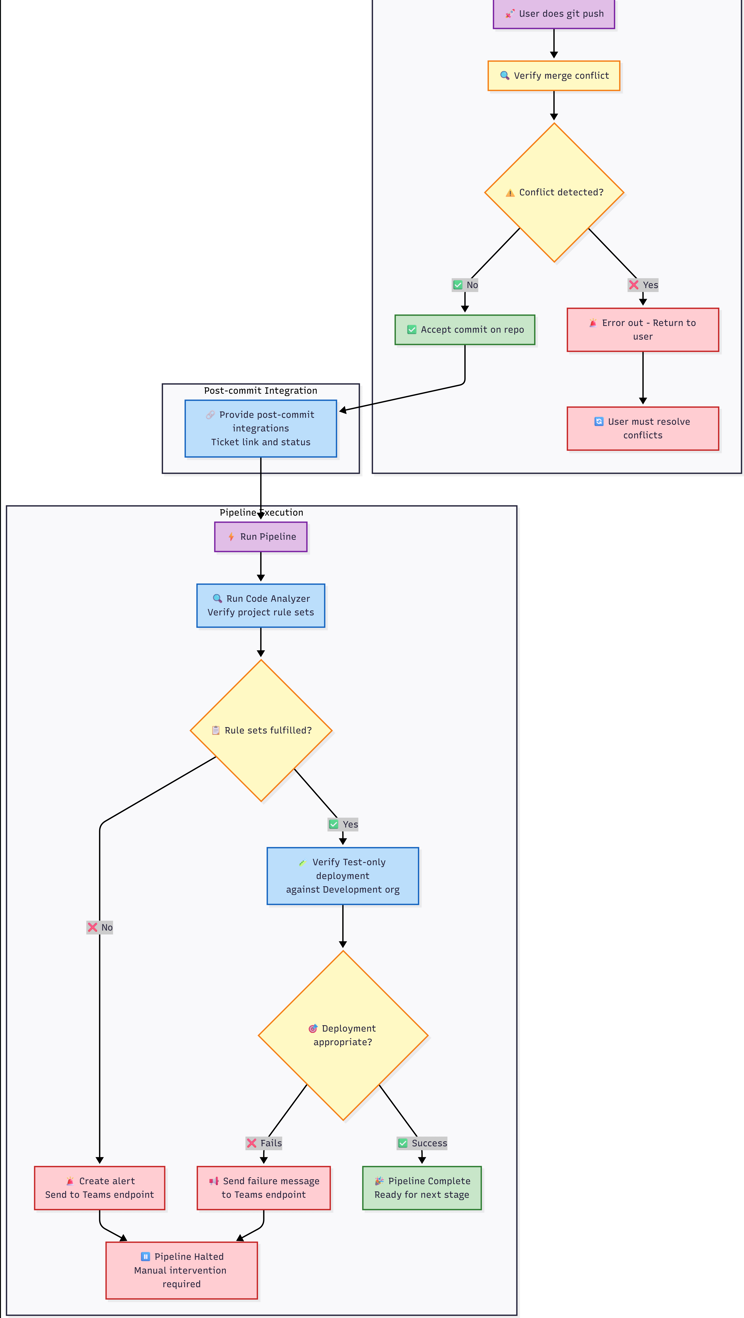
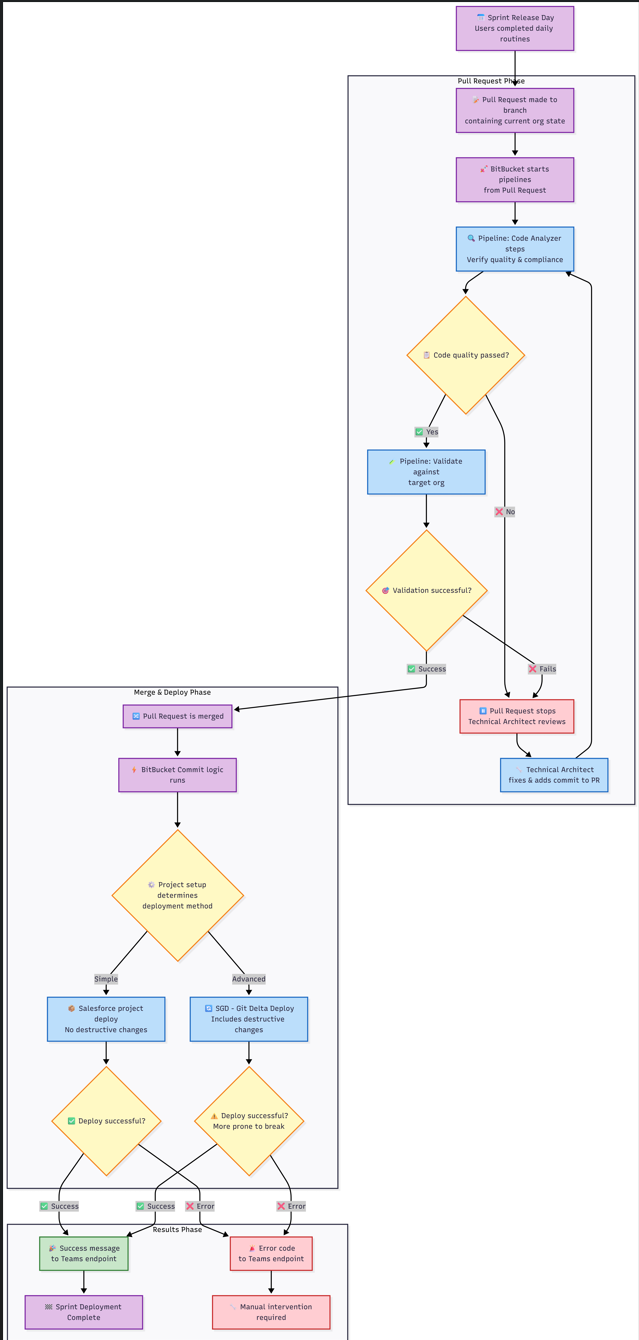
Once you push your changes, the automated pipeline takes over :
Code Quality Checks
The pipeline automatically runs code quality checks based on what you've changed:
- Apex Code Analysis: PMD, SFGE, and CPD checks for Apex classes and triggers
- LWC Analysis: ESLint and Retire-js checks for Lightning Web Components
- Flow Analysis: Flow Scanner checks for Salesforce Flows
- Security Scans: Comprehensive security and best practice validation
Validation Deployments
For pull requests, the pipeline runs validation deployments:
- Validates metadata can be deployed without errors
- Runs appropriate test levels based on target environment
- Checks for conflicts with existing metadata
Environment-Specific Actions
Based on your branch and target, different actions occur automatically:
- Feature branches → Dev: Validation against Dev environment
- Release branches → UAT: Full deployment to UAT
- Hotfix branches → Production: Comprehensive validation and testing
- Main branch: Continuous validation without deployment
Working with Scratch Orgs
Scratch Org Lifecycle
Scratch orgs are temporary development environments that typically last 7-30 days. The pipeline provides automated scratch org management:
- Creation: Automated scratch org creation with project-specific configuration
- Setup: Automatic package installation, permission set assignment, and data loading
- Snapshots: Template creation for faster future scratch org provisioning
Scratch Org Best Practices
- Use snapshots for faster org creation when available
- Load demo data from UAT for realistic testing scenarios
- Assign permission sets automatically through configuration files
- Refresh regularly to avoid expiration and maintain clean state
Integration with Project Management
JIRA Integration
Every commit should reference a JIRA ticket number in the commit message. This enables:
- Automatic ticket status updates
- Traceability from requirements to implementation
- Release notes generation
- Change impact analysis
Teams Notifications
The pipeline sends automatic notifications to Microsoft Teams channels :
- Code quality check results
- Deployment success/failure notifications
- Scratch org creation confirmations
- Validation results with artifact links
Troubleshooting Common Issues
Merge Conflicts
If you encounter merge conflicts:
- Pull the latest changes:
git pull origin main - Resolve conflicts in your IDE
- Test the resolution in your scratch org
- Commit and push the resolution
- If unable to resolve, escalate to Technical Architect
Deployment Failures
When deployments fail:
- Check the pipeline logs in Bitbucket
- Review code quality reports in the artifacts
- Fix issues locally and re-commit
- Use validation deployments to test fixes
Org Sync Issues
If your org gets out of sync with the repository:
- Use
sf project retrieve startto get latest org state - Review differences with
git diff - Commit necessary changes or revert unwanted ones
- The pipeline includes sync checks to detect this automatically